.png)
Timesheet Recipe - When timesheet for task is updated in workspace search for the item with task name and update the item
This recipe will update an item with the same values from a timesheet in Clockify.
If the timesheet is updated, the item will be updated with the latest values.
-
Visit the integration centre on the top right-hand side of your board.

-
Select the Timesheets feature.

-
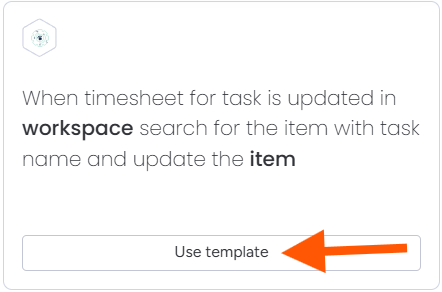
Select the recipe: When timesheet for task is updated in workspace search for the item with task name and update the item.
-
If prompted, follow the authorisation steps here.
-
Select your Clockify Workspace when configuring the recipe.

- Configure the Item Mapping for the item.

The following fields can be mapped to the following column types:
- Timesheet ID: Item Name, Text, Long Text, Status
- Description: Item Name, Text, Long Text, Status
- Billable: Item Name, Text, Long Text, Status
- Project Name: Item Name, Text, Long Text, Status
- Client name: Item Name, Text, Long Text, Status
- Hourly Rate: Item Name, Text, Long Text, Status, Numeric
- Cost Rate: Item Name, Text, Long Text, Status, Numeric
- Duration: Item Name, Text, Long Text, Status, Numeric
- Task Name: Item Name, Text, Long Text, Status
- User Name: Item Name, Text, Long Text, Status
- User: People
- Tags: Item Name, Text, Long Text, Status, Dropdown
- Start Date: Text, Date
-
End Date: Text, Date
More information on basic columns can be found here.
7.Once the recipe has been configured. Click "Add to board".
8.If the recipe has been successfully added, you will see an active integration.

For further assistance, please contact support@luxie.tech or submit a ticket