.png)
When status changes to something create or update client in workspace with subitem tasks
This recipe creates or updates a client with subitem tasks in a Clockify Workspace.
If a client already exists with the same name, this item will update the existing client with any future changes.
1. Click on automate on the top right-hand side of your board.

- Click on create and search for Clockify.
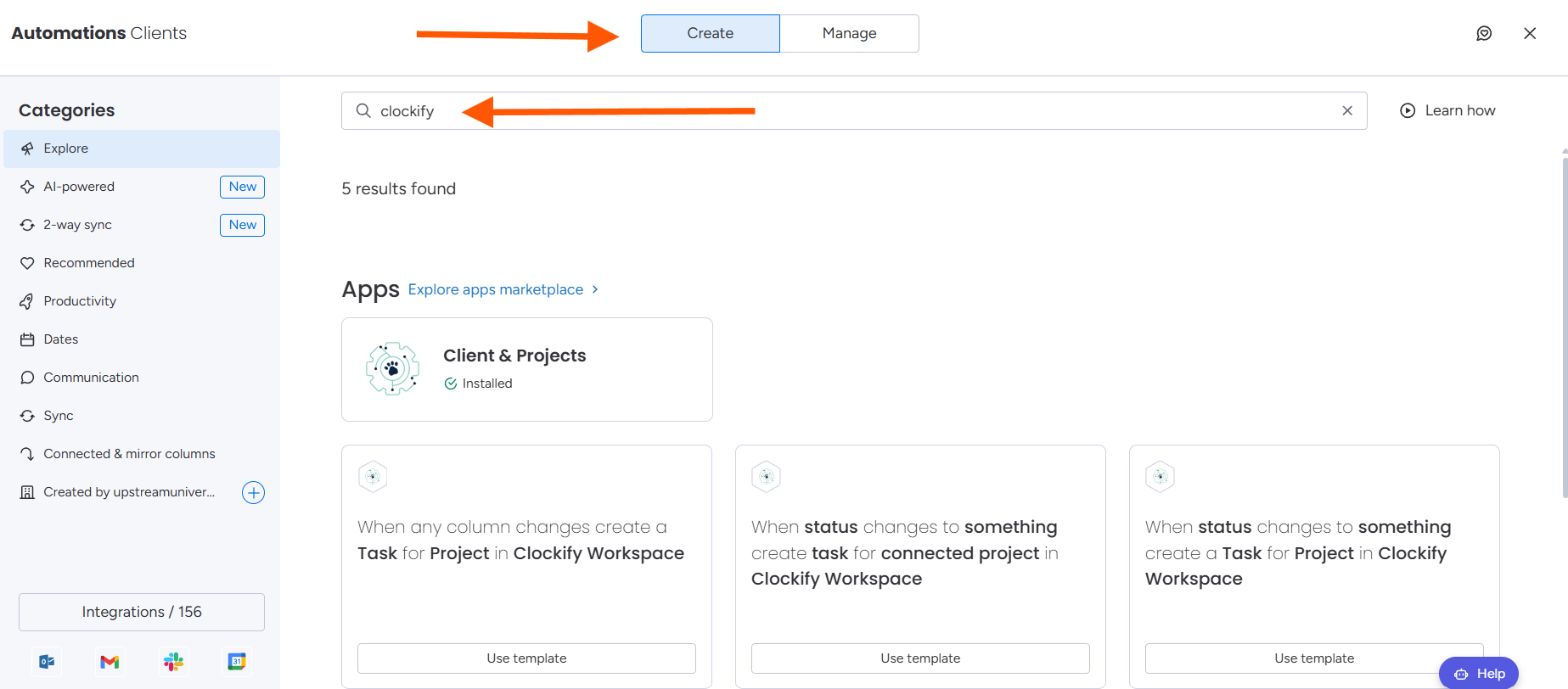
3. Select the Clients & Projects feature.
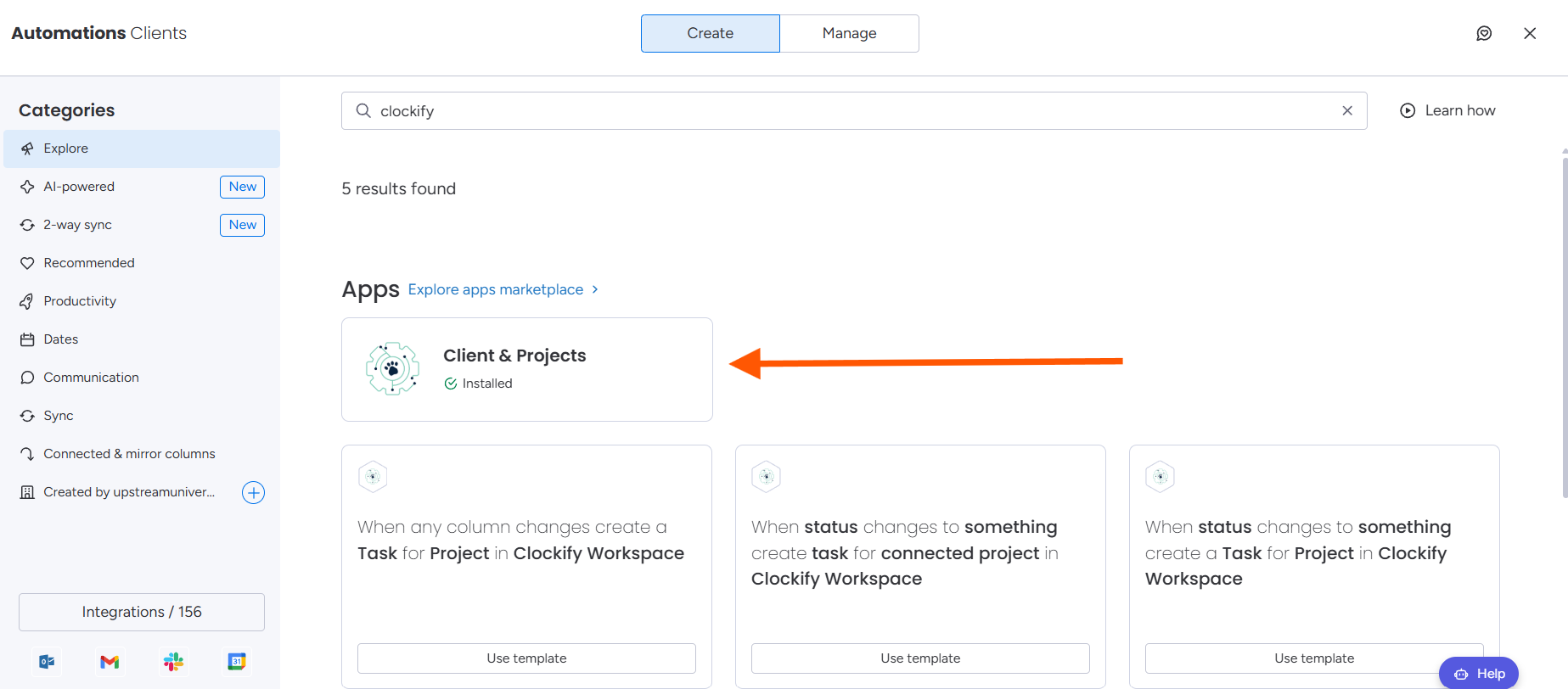
4. Select the recipe: When status changes to something create or update client in workspace with subitem tasks.

5. If prompted, follow the authorisation steps here
6. Configure the recipe.

7. Select your status column
8. Select your trigger
9. Configure the Item Mapping for the Project field. Project Name is a required field. If no project name is provided, the integration will attempt to create a new project with the Item ID as the project name.

Project Name - The name of the project in Clockify.
Note - Projects notes associated with the project.
Assigned Users - The users that should be able to view and track time against the project. This accepts a Dropdown to Text column.
Billable - If time tracked should be marked as Billable by default. This accepts True/False or Billable/Non Billable.
Public - If the project is available for all users in your account to view and track time against. This accepts True/False or Public/Private.
10. Select your Clockify workspace.
11. Once the recipe has been configured. Click "Create Automation".
12. If the recipe has been successfully added, you will see an active integration.

For further assistance, please contact support@luxie.tech or submit a ticket